
Chatspeed Proxy Group Switching - Seamlessly Switch AI Models During Programming
🎯 Problem and Solution
In daily AI-assisted programming, we often need to switch different models based on task types:
- Simple tasks: Want to use fast, cheap models (like Haiku level)
- Complex tasks: Need more powerful reasoning capabilities (like Opus level)
- Cost control: Want to use cost-effective models from different providers in different scenarios
The traditional approach is to modify the ANTHROPIC_BASE_URL environment variable in Claude Code, which requires:
- Exiting the current Claude Code session
- Modifying the environment variable
- Restarting Claude Code
This process is cumbersome and disrupts workflow.
Chatspeed's proxy group switching feature perfectly solves this problem—you can seamlessly switch model configurations during programming, with all changes taking effect immediately, no need to restart any application.
🚀 Core Features
1. /switch Dynamic Route Prefix
Chatspeed's CCProxy module supports the /switch endpoint prefix. When a client request is sent to the /switch/ path, the proxy automatically reads the currently active proxy group configuration and forwards the request to the models defined in that group.
# Claude Protocol (Native to Claude Code)
# Access the model in the active group
curl -X POST http://127.0.0.1:11435/switch/v1/messages \
  -H "x-api-key: {proxy-key}" \
  -H "anthropic-version: 2023-06-01" \
  -H "Content-Type: application/json" \
  -d '{"model": "claude-sonnet-4-20250514", "messages": [{"role": "user", "content": "hello"}], "max_tokens": 100}'

# Claude Code Configuration Example
export ANTHROPIC_BASE_URL="http://127.0.0.1:11435/switch"
export ANTHROPIC_AUTH_TOKEN="{proxy-key}"

# Now start Claude Code, all requests will use the currently active group configuration
claude
2. Alt+Shift+P Quick Switch Panel
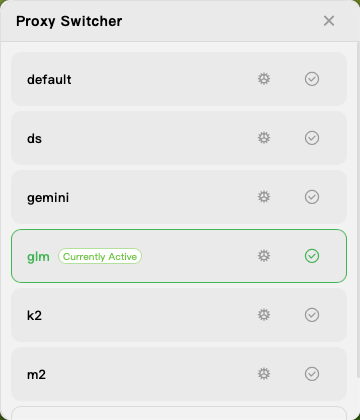
Press Alt+Shift+P (customizable) to bring up the lightweight group switching panel:
- Keyboard Navigation: ↑/↓ Arrow keys to preview, Enter to activate, Esc to close
- Mouse Operation: Click on a group item to directly activate it
- Tool Mode Switching: Click the settings icon on the left to cycle through three modes
Tool Compatibility Mode Note
The panel has a tool mode icon on the left, click to cycle through three modes. For detailed explanation, please refer to Tool Compatibility Mode Explained.
| Mode | Icon | Description |
|---|---|---|
| Native Call | 🔨 | Directly use AI's own tool calling capability |
| Compat Mode | 📝 | Parse tool parameters via XML format, suitable for models that don't support native tool calling |
| By Address | ⚙️ | Determined by request URL prefix, e.g., /switch/compat_mode/ enables compat mode |
⚠️ Priority Note: The tool mode setting in the group will override the URL prefix setting.
Immediate Effect: New requests use the new configuration immediately after switching Smart Hide: Window automatically hides when losing focus, without interfering with workflow
3. Group Model Mapping Mechanism
Each proxy group can independently configure mapping targets for the three model aliases claude-haiku-*, claude-sonnet-*, claude-opus-*:
| Client Request Model | ds Group Mapping | glm Group Mapping | kimi Group Mapping |
|---|---|---|---|
| claude-haiku-* | ds-code-2.5 | glm-4.5 | kimi-k2.5-fast |
| claude-sonnet-* | deepseek-3.1 | glm-4.6 | kimi-k2.5 |
| claude-opus-* | deepseek-3.2 | glm-4.7 | kimi-k2.5-pro |
This means when you switch groups, Claude Code automatically uses different backend models without modifying any code or restarting the application.
📝 Configuration Guide
Step 1: Add Proxy Group
- Open Chatspeed settings → Proxy
- Switch to "Proxy Groups" and click "+" in the upper right corner to add a new group
- Fill in the group name (such as
ds,glm,minimax, etc.) and related settings, then save
Step 2: Configure Model Mapping
In the group editing interface, configure the backend target for each Claude model:
Proxy Group Name: ds

Proxy Models:
├── claude-haiku-* → ds-code-2.5 (or qwen3-code-30b)
├── claude-sonnet-* → deepseek-3.1
└── claude-opus-* → deepseek-3.2
Step 3: Configure Claude Code
# Method 1: Use /switch dynamic route (recommended)
export ANTHROPIC_BASE_URL="http://127.0.0.1:11435/switch"
export ANTHROPIC_AUTH_TOKEN="cs-xxxxx"

# Method 2: Use group name directly
export ANTHROPIC_BASE_URL="http://127.0.0.1:11435/ds"
export ANTHROPIC_AUTH_TOKEN="cs-xxxxx"
Step 4: Start Using
- Start Claude Code:
claude - Press
Alt+Shift+Pto bring up the switching panel - Select the target group (such as ds, glm, minimax)
- Continue programming—the model has been seamlessly switched
💡 Practical Scenarios
Scenario One: Cost Optimization
# Daily simple tasks → Use free/low-cost models
# Switch to ds group (using deepseek/qwen free quota)

# Complex code generation → Use high-quality models
# Switch to glm group (using Zhipu GLM high-performance models)
Scenario Two: Provider Rotation
# Current provider quota exhausted → Switch to other groups with one click
ds → minimax → kimi → ollama local models
Scenario Three: Tool Calling Compatibility Adjustment
If a model in a certain group doesn't support native tool calling, you can quickly switch to compat mode by clicking the tool mode icon on the left of the switching panel. See Tool Compatibility Mode Note for details.
📊 Usage Tips
- Group Naming Convention: Use meaningful names like
ds(deepseek),glm(Zhipu),ollama-local, etc. - Pre-configure: Configure all groups you might need before starting programming
- Use Shortcuts:
Alt+Shift+Pis the most efficient way to switch - Tool Mode Switching: For models that don't support native tool calling, remember to switch to compat mode
🎉 Summary
Chatspeed's proxy group switching feature makes AI model management simpler than ever:
- Zero Interruption: Switch anytime during programming, no need to restart applications
- Extreme Convenience:
Alt+Shift+Pone-click panel access - High Flexibility: Each group independently configured, suitable for different scenarios
- Low Cost: Easily switch between free/low-cost models
Now, you can truly achieve "choose models as needed, switch at will", making your AI programming workflow more efficient and smooth.
This article is based on Chatspeed v1.1.26+